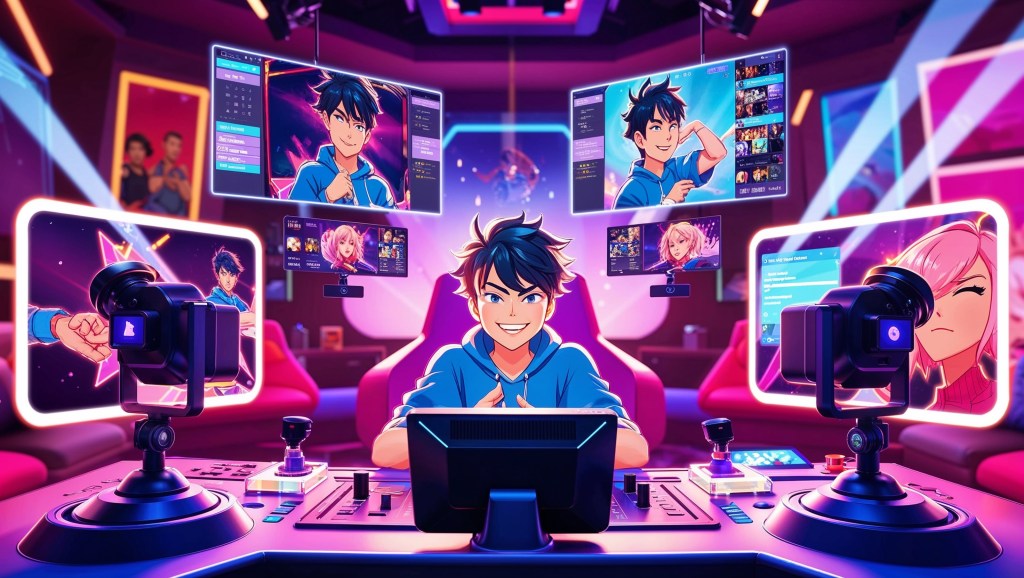
VTubing isn’t just about having a cute or cool VTuber avatar; it’s about making that avatar feel alive. And nothing adds life quite like motion, energy, and, yes, camera angles. If you’re still using a single static shot of your avatar for your entire stream, you’re leaving a ton of viewer engagement on the table. Today’s top VTubers are embracing multi-camera setups, not just for flair but for functionality, storytelling, and scene mastery. It’s not just a gimmick, it’s a strategy.
In this blog, we will explore why multi-camera angles matter for VTubers, when to switch them, how to set them up in OBS, and pro stream layout tips to direct like a pro.
Why Use Multi-Camera Angles in VTubing?
VTubing is digital performance art. Just as in film or theater, visual dynamics matter. Here’s why creators are turning to multi-camera setups:
1. Visual Variety Keeps Viewers Hooked
The average viewer’s attention span is short—especially on Twitch or YouTube. If your scene stays the same for 30+ minutes, people will tab out. Switching to a different angle, like a close-up during a story or a wide shot for gameplay—adds instant refreshment.
2. Expressiveness Without Changing Your Avatar
You might not be able to change your VTuber model mid-stream, but camera angles let you change the perception. A tilted close-up with dramatic lighting can emphasize tension, while a chill zoomed-out frame creates a relaxed vibe.
3. Better Integration with Your Content
Are you doing a Just Chatting stream? Use a comfy shoulder-level shot. Reacting to memes? Pop into a dramatic close-up for punchlines. Gaming? Add a tiny “reaction cam” in the corner. Angles become tools to match your tone.
4. Immersive Storytelling
VTubers who roleplay, host lore-rich streams, or build narratives can use angles to create emotional beats. Think: a top-down cam for a “God view,” or a shaky cam effect for chaos scenes.
When to Switch Camera Angles (Without Overdoing It)?
Just because you can switch doesn’t mean you should do it constantly. Timing is everything. Here’s when camera switching really shines:
🔁 Scene Transitions
Switch angles during intro sequences, BRB screens, or when transitioning between topics. It keeps the flow from feeling mechanical.
😆 Reactions
Zoom in on your face when you’re shocked, laughing, or roasting something. This makes your reactions hit harder and feel more personal.
🎮 Gameplay Highlights
Use different angles to highlight you, not just the game. A close-up for your commentary during a boss fight adds tension, while a wider frame during grinding sections keeps things casual.
🧪 Experimental or Themed Streams
Doing a lore reveal? Hosting a “news anchor” parody? Running a cooking stream as your VTuber persona? Camera angles can amplify your role.
Pro Tip: Try not to switch more than once every 2–3 minutes unless it’s for comedic timing or emphasis. Too much switching can overwhelm viewers and break immersion.
How to Set Up Multi-Camera Angles in OBS?
This is where the magic happens—and it’s surprisingly doable, even if you’re a solo indie VTuber. OBS (Open Broadcaster Software) is the industry standard for a reason: flexible, powerful, and VTuber-friendly.
Let’s walk through how to make it happen.
Step 1: Create Multiple Virtual Cameras Using Your VTuber Software
Depending on what you use—VTube Studio, Animaze, Luppet, or VSeeFace, you may need to create additional scenes or viewpoints within that program.
- In VTube Studio, you can use hotkeys to change positions (e.g., zoomed-in headshot, side-profile, full body).
- In VSeeFace, use the camera control hotkeys to shift framing and zoom.
- Some programs let you output to OBS via OBS virtual camera setup, which essentially makes your avatar appear as a webcam input in OBS.
You don’t need multiple real cameras—you just need multiple framed shots.
Step 2: Set Up Your Scenes in OBS
In OBS, scenes are like TV studio presets. Each scene can contain different layouts, camera angles, overlays, and more.
- Scene 1: Default view – Medium shot of your VTuber avatar + chatbox overlay + gameplay.
- Scene 2: Close-up shot – Great for reactions or dramatic reads.
- Scene 3: Full-body shot – Perfect for idle chat, dancing, or standing moments.
- Scene 4: Side view or over-the-shoulder – Adds dynamism during special segments.
Create these scenes using the same VTuber capture source but crop/resize each differently.
Step 3: Use OBS Camera Switching with Hotkeys
Go to Settings > Hotkeys and assign keyboard shortcuts to “Switch to Scene X.”
This way, you can quickly jump from Scene 1 to Scene 2 mid-stream, no clicking required. Want even smoother control?
- Stream Deck: If you have an Elgato Stream Deck, you can map buttons for scene changes.
- Touch Portal or Deckboard (free mobile options) also let you control scene switches from your phone.
Bonus: Want to go extra pro? Add transitions like fades, swipes, or stingers between angles to make it seamless.
Step 4: Match Camera Angles with a Cohesive Stream Layout
Don’t just plop your avatar into random corners.
If you’re learning how to make a stream layout, think of it like interior design: every camera angle needs a matching frame.
Things to consider:
- Visual consistency: Use matching borders or color palettes for each camera scene.
- Overlay responsiveness: Make sure alerts (subs, donations, chat) aren’t blocked by your avatar.
- Backgrounds: Choose dynamic or themed backdrops that enhance the purpose of the scene.
For example, your “react close-up” scene might have bold colors and a comic-style background, while your gameplay scene has a clean, minimal layout with a gameplay window and chat sidebar.
Creative Uses of Camera Angles by VTubers
Let’s look at how top VTubers use multiple angles to stand out:
🕵️♀️ The Detective VTuber
Uses angled “interrogation cam” shots during lore storytelling segments. Zooms into the eyes for dramatic pauses. Themed overlays include crime board visuals.
🍳 The Cooking VTuber
Switches between overhead cam (showing the dish layout) and a talking avatar cam reacting to chat. Makes full use of wide-angle virtual kitchen scenes.
👑 The Roleplayer
Has a “throne room” wide shot, a “commanding stare” close-up, and even a “mirror reflection” cam used during internal monologues.
🤖 The Tech-Heavy Streamer
Uses OBS camera switching with MIDI control, adjusting lighting and camera zooms based on real-time chat triggers like “!zoom” or “!drama”.
Pitfalls to Avoid When Using Multi-Camera Angles
- Laggy transitions: If you’re switching scenes too fast or using high-resolution overlays, OBS may lag. Optimize your assets.
- Inconsistent lighting or model posture: Make sure your VTuber avatar looks natural across angles. Don’t zoom in too far or distort proportions.
- No storytelling reason: Don’t switch just for the sake of switching. Every camera change should have a purpose—whether it’s humor, emotion, or emphasis.
Don’t Forget: Your VTuber Avatar is the Star
The goal of all this? To serve your VTuber model better. Angles enhance your performance, your storytelling, your humor, but they shouldn’t distract from the personality you’re building. Whether your avatar is a gothic demon, a pastel alien, or a sleepy catboy, the camera should support the brand. Use angles to enhance the expressions, the drama, the jokes. When done right, viewers won’t just say “cool camera work”, they’ll say, “Wow, I felt that moment.”
Closing Thoughts
VTubing is evolving into a space where creativity meets direction, and camera angles are your backstage pass to stand out. By using OBS camera switching and thoughtful stream layout design, you turn simple livestreams into cinematic experiences. It’s not about complexity; it’s about intention. With the right angles, your VTuber avatar becomes more expressive, your content more immersive, and your audience more engaged. So don’t just stream, stage it. Have you experimented with multi-camera angles? What’s your favorite scene-switch trick? Drop your setup tips in the comments, we would love to feature standout ideas in a future post!


 VtuberLab
Leave a reply to Neon clip Cancel reply