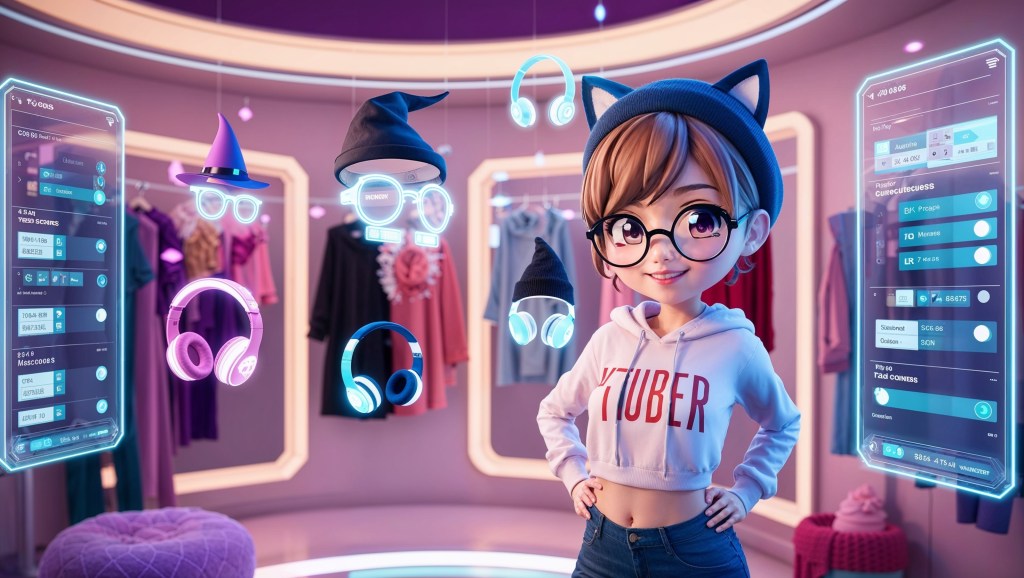
When you first create your VTuber avatar, everything feels exciting. You’ve picked your hair, outfit, and maybe even a cool color palette. But sooner or later, you’ll find yourself itching to level it up, to add that stylish pair of round glasses, edgy wireless headphones, or a cute beanie that screams your vibe. That’s where VTuber accessories come in.
But before you start dragging PNGs onto your avatar or toggling new props midstream, there’s something you need to understand: not all accessories are rig-safe. One wrong move, and your beautifully animated model could blink through your shades, or worse, break your face rig entirely.
So, how do you accessorize your VTuber avatar without breaking the rig? This blog breaks it down for beginners and mid-level creators alike, using clear tips on rig-safe customization, Live2D toggles, avatar layering, and everything else you need to stay stylish and functional.
Why VTuber Accessories Matter More Than You Think?
Think about your favorite VTuber. Chances are, they don’t look the same on every stream. Maybe they wear pink heart-shaped glasses for Valentine’s Day, or slap on cat-ear headphones for gaming collabs. Accessories aren’t just cute, they’re powerful.
- They express personality without needing a full model update.
- They match the mood of special events, holidays, or themes.
- They boost engagement, especially when toggled live.
These details, tiny as they seem, build your avatar’s identity over time. Accessories act like visual punchlines to your digital persona. But all this depends on how well you integrate them into your rig.
What Makes a Customization “Rig-Safe”?
Rig-safe customization means adding elements to your avatar without disrupting your face tracking, physics, or animation layers.
In technical terms: rig-safe accessories don’t override or interfere with the movement of your original Live2D parts (like hair, eyes, or mouth). For example, sunglasses that sit on your face should not prevent your eyebrows from moving underneath them.
Here’s what rig-safe accessories have in common:
- They’re layered correctly (on top or below the correct part).
- They use toggles or switches, not permanent changes.
- They’re physics-optimized, meaning they don’t lag, jitter, or stutter.
And most importantly, they’re tested, both inside your model editor (like Live2D Cubism) and in your streaming software (like VTube Studio or PRPRLive).
Mastering the Art of VTuber Accessories
From stylish to silly, accessories like glasses, headphones, and hats add personality to your avatar—if you know how to add them without breaking your rig.
Accessory Type 1: Eyewear (Glasses, Shades, Monocles)
Glasses are one of the most popular VTuber accessories—and for good reason. They’re expressive, aesthetic, and easy to swap depending on your mood or stream theme.
But here’s where new VTubers mess up: slapping on a PNG that doesn’t align or move with your face. Glasses need to follow your face angle, tilt with head rotation, and ideally bounce slightly if you have physics enabled.
Rig-Safe Tips for Eyewear:
- Add glasses as separate Live2D parts inside your model PSD before exporting. This ensures proper mesh and movement.
- Use toggling parameters like ParamAccessoryGlasses to turn them on or off during a stream.
- Avoid placing them over animated eyelids or brows unless they’re semi-transparent or rigged with their own masking.
Want advanced control? You can create a toggle set: one for everyday glasses, one for anime-style glowing shades, and another for meme streams (👓👀).
Accessory Type 2: Headphones (Stylish, Functional, Iconic)
Headphones are more than just decoration—they instantly give your VTuber model a “streamer” look. Whether you go for chunky DJ-style cans or subtle wireless buds, headphones create an audio-themed identity without saying a word.
But here’s the rigging challenge: they often collide with hair physics.
Rig-Safe Tips for Headphones:
- Anchor the headphones behind or between hair layers, depending on your model’s style.
- Use spring bone physics or rotation deformers if they need to move slightly with your head.
- Test them with head tilts, nods, and emotion toggles to make sure they don’t clip into your face or hair.
For extra flair, you can animate blinking LEDs or logos on the headphones, or switch between casual earbuds and gamer gear depending on your stream.
Accessory Type 3: Hats (Beanies, Berets, Crowns, Oh My!)
Hats are statement pieces. They can suggest mood (a sleepy cap for late-night ASMR), season (Santa hat in December), or rank (yes, we’ve seen majestic crowns). But because they sit on top of your model, they’re also the most likely to interfere with hair and physics.
Rig-Safe Tips for Hats:
- Place the hat in its own layer group and test it across multiple angles.
- Turn off physics temporarily while rigging the hat to ensure clean placement.
- Use opacity toggles or hat-switch groups to allow multiple styles without bloating your model size.
For fluffy hats like berets or oversized winter wear, consider adding bounce physics for realism, but keep it subtle to avoid lag.
Mastering Live2D Toggles: The Secret to Smooth Switching
Live2D toggles are your best friend when it comes to VTuber accessories. A toggle allows you to switch accessories on and off in real-time, usually triggered by hotkeys or stream deck buttons.
Common Live2D Toggles:
- ParamAccessoryHat
- ParamAccessoryHeadphones
- ParamAccessoryGlasses
- Custom parameters (you can name them anything)
Best Practices:
- Keep toggles on a separate art mesh or deformer.
- Link toggles to VTube Studio hotkeys or Twitch redeem actions for viewer interactivity.
- Avoid stacking toggles on the same area (like hat + horns + headphones) unless pre-tested.
This system keeps your model light, modular, and free from unexpected behavior mid-stream.
Avatar Layering: Where Things Go (and What Happens If They Don’t)
Layering is a simple concept but can make or break how your accessories behave.
Layering Basics:
- Front accessories (glasses, piercings) go above face layers.
- Mid accessories (headphones, hats) sit between hair layers or above the scalp.
- Back accessories (wings, scarves, halos) go behind everything.
Why It Matters:
- Incorrect layering causes clipping, where parts awkwardly show through each other.
- Layer priority impacts physics—accessories layered under hair won’t “bounce” visibly.
- Some toggles won’t work properly if their layer order breaks animation flow.
To fix layering issues, you’ll need to re-order your parts in Live2D Cubism’s draw order, or use custom alpha masks.
What About PNGTubers or Non-Rigged Avatars?
If you’re a PNGTuber or use a static avatar, the rules are much simpler—you can layer accessories in any art software and toggle between them using programs like Veadotube Mini or Reactive Images.
Just remember:
- Avoid overloading your scenes with too many toggles (it can crash lower-end PCs).
- Keep accessory PNGs matching your avatar’s lighting, shadow, and style for a seamless look.
- Name your files clearly—nothing worse than trying to switch to “cool_shades_2_final_reallyfinal.png” midstream.
How to Rig a VTuber Avatar with Accessories?
If you’re planning to build your VTuber model from scratch or rework it with accessories in mind, here’s your step-by-step breakdown:
- Design Accessories with Layers in Mind: Create glasses, hats, and headphones as separate groups in your PSD. Avoid merging them with the hair, face, or clothes.
- Import and Mesh Separately in Live2D Cubism: Add them as new parts with their own art mesh and deformers.
- Assign Toggles and Parameters: Use consistent naming (ParamAccessoryHat, etc.) and test your toggle switches.
- Add Light Physics (Optional): For headphones or floppy hats, spring bones or physics settings give realism.
- Test in Real-Time: Import your avatar into VTube Studio and move around—watch for clipping, lag, or animation bugs.
- Set Up Stream Controls: Use Stream Deck, Twitch redeems, or OBS hotkeys to activate accessories live.
This way, your model remains fully functional, animated, and expressive without ever breaking.
Tools That Make Accessorizing Easier (Without Breaking Your Model)
Customizing your VTuber avatar doesn’t have to be overwhelming. Whether you’re adding your first pair of glasses or swapping between seasonal hats, the right tools can save you time, prevent rigging errors, and even inspire new ideas.
Here are some of the most helpful tools for rig-safe accessory customization:
🛠️ Live2D Cubism
This is where the magic begins for 2D VTubers. You’ll need Cubism to add accessories as separate parts, mesh them correctly, and set up toggles or deformers. If you’re layering a hat behind your bangs or adding physics to headphones, Cubism is the base camp.
🎮 VTube Studio
After rigging, you’ll want to test everything live—and VTube Studio is the go-to for most 2D VTubers. It supports real-time toggling, hotkeys, and even physics settings for props. The UI is beginner-friendly, and you can switch accessories midstream with just a tap.
🎨 Photoshop or Clip Studio Paint
For drawing and exporting accessories, these art tools are essential. Make sure to keep each accessory element on its own layer and name it clearly, especially if you’re planning to import it later into your model.
💡 TheVTubers.com
If you’re working in 3D or want a shortcut to a clean, stylized model that already gets your vibe, VTubers.com is worth checking out. They offer custom 3D avatars for VTubers—complete with options for accessories, outfits, and unique flair built right in. These models are rigged to move smoothly and are designed with both personality and stream-readiness in mind. Instead of stressing about how to rig a VTuber avatar from scratch, you can focus on expressing your style, with swag, layers, and rig-safe motion already handled.
Bonus Tools to Explore:
- Stream Deck – for assigning quick accessory toggles or outfit switches.
- Hotkey Toolkits – to automate accessory reveals during specific moments (like Twitch redeems).
- Veadotube Mini – for PNGTubers who want simple prop swapping without full rigging.
With the right setup and support, accessorizing your VTuber avatar can be just as fun and dynamic as playing dress-up, without the rigging nightmares.
Final Thoughts
The best VTuber models aren’t necessarily the ones with the most features, they’re the ones where everything just works. By learning how to accessorize your VTuber avatar properly, whether it’s with eyewear, headphones, or hats, you build a visual language that evolves over time. And you do it without needing to redo your rig every month. So go ahead, add that flower crown, those aviators, or those studio headphones. Just remember: form follows function in the VTubing world. Rig-safe is drip-safe.


 VtuberLab
Leave a reply to Milo Cancel reply