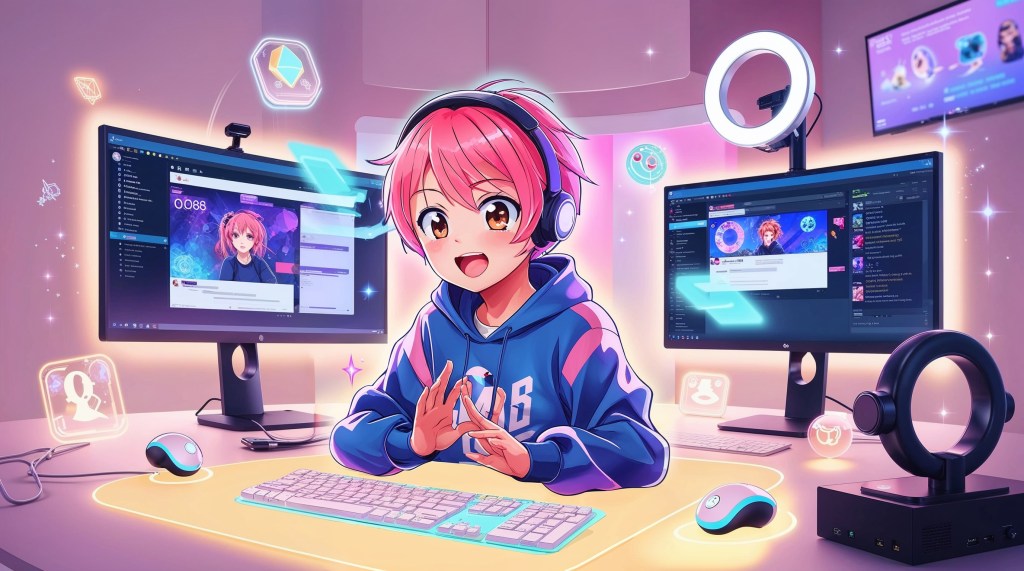
VTubing has evolved far beyond just having a pretty avatar on screen. In 2025, if you’re serious about growing as a content creator, your VTuber stream needs to do more than talk; it needs to move, react, and express in sync with your personality. One of the most powerful ways to elevate your broadcast is by animating the assets and accessories that surround your avatar.
From reactive cat ears and bouncing plushies to shimmering overlays and ambient backgrounds, animated VTuber stream assets are no longer optional, they’re what makes your presence truly unforgettable. Whether you’re just starting out or planning a full-scale stream overhaul, this guide will show you how to animate your accessories and create a visually dynamic VTuber stream that pulls viewers in and keeps them watching. Let’s dive into the what, why, and how.
What Are VTuber Stream Assets, and Why Should You Animate Them?
At its core, your VTuber stream is a blend of visuals, sound, and interaction. And while most VTubers focus primarily on their character model, there’s a whole layer of storytelling that happens through your VTuber stream assets, the visuals that surround and support your avatar.
These include:
- VTuber accessories (hats, glasses, floating pets, magical orbs)
- VTuber backgrounds (custom room designs, ambient sceneries)
- VTuber overlays (stream alerts, chat boxes, info panels)
- Props (coffee cups, spellbooks, plushies, etc.)
- Animated elements (sparkles, transitions, reactive items)
When static, these elements just “sit” there. But when animated? They create immersion. They turn your stream from a talking head into an anime episode happening in real-time.
Animating your VTuber assets and accessories helps you:
- Establish a visual rhythm that matches your personality
- React to viewer actions with emotion and flair
- Make your VTuber avatar feel alive in its own world
- Maintain visual interest, especially in slower moments
- Express moods or events (like seasons, holidays, milestones)
Getting Started: How to Stream as a VTuber (for Beginners)
Before you dive into animated assets and custom accessories, make sure your core VTuber stream setup is solid. Whether you’re going for a chill anime vibe or a high-energy gaming persona, a strong foundation will help your content shine.
Here’s what you’ll need to start streaming as a VTuber:
- Create or commission your VTuber avatar – Choose between a 2D Live2D model or a full-body 3D VTuber avatar. Consider your brand style, movement needs, and budget.
- Choose your streaming software:
– For 2D VTubers: VTube Studio, PRPRLive
– For 3D VTubers: VSeeFace, Luppet, Animaze - Set up facial tracking and motion capture – Most creators use a webcam, iPhone (for ARKit support), or Leap Motion for added hand tracking.
- Install OBS Studio or Streamlabs – These are your broadcasting tools; they let you go live and manage overlays, alerts, and VTuber stream assets.
- Add your VTuber overlays, accessories, and stream elements – These include animated widgets, reactive chat boxes, VTuber backgrounds, and more.
- Test everything – Check sync, FPS, lighting, mic quality, and animation triggers. When it’s all polished—go live!
Once you’ve nailed the basics, it’s time to evolve. Next up: how to animate your VTuber stream elements to stand out, feel more alive, and connect with your viewers on a deeper level.
Next Level: Animating Your VTuber Stream Assets
Now that your VTuber stream is up and running, it’s time to make it feel alive. This is where animation comes in—not just for your avatar, but for everything that surrounds it. Think moving overlays, reactive accessories, glowing effects, or cozy looped VTuber backgrounds that shift with your mood.
Animated VTuber stream assets enhance your storytelling, reinforce your brand identity, and keep your audience visually engaged. Even simple movements—like blinking emotes, floating charms, or pulsing frames—can bring surprising depth to your stream. In a space where attention is gold, animation sets you apart.
In the sections that follow, we’ll break down how to animate your VTuber accessories, tools to use for both 2D and 3D VTubers, and creative ways to design your stream elements with motion in mind.
Leveling Up: The Intermediate VTuber Stream Setup
Once you’re comfortable with the basics, it’s time to level up your VTuber stream. This stage is all about refining visuals, adding personality, and setting the stage for animated assets.
Here are key upgrades every intermediate VTuber should explore:
- Polished VTuber Stream Assets
Replace default overlays with custom designs that reflect your brand. Think themed panels, chat boxes, and stylized frames. - Dynamic VTuber Accessories
Add props like floating plushies, cat ears, or themed gear that react subtly to movement—even without full animation. - VTuber Backgrounds & Virtual Sets
Use detailed VTuber backgrounds or stylized rooms that reflect your stream’s vibe—cozy cafés, neon cityscapes, or fantasy forests. - Scene Switching & Alerts
Use Stream Deck or OBS hotkeys for smooth scene changes, alerts, and on-screen interactions. - Facial Expression Triggers
Map hotkeys for quick mood changes—like blushing, crying, or laughing—to keep your avatar expressive and alive.
This phase bridges the gap between static setups and fully animated experiences. Even small motion cues can boost immersion and prepare you for advanced animation tools and interactive environments.
Advanced Animation: Bringing Your VTuber Stream to Life
Now that your stream layout and assets reflect your identity, it’s time to go beyond decoration—into animation that reacts, moves, and transforms in real time. This is where your VTuber stream truly comes alive.
Here’s how advanced creators bring dynamic energy into their streams:
- Live2D Animations & Physics (for 2D Avatars)
Add animated accessories—like fluttering wings, blinking hair clips, or reactive emotes—directly in Cubism. Use physics for hair, scarves, or tails to move naturally with your motions. - Unity + VRM Workflows (for 3D Avatars)
Animate props in Unity and export them into platforms like VSeeFace or VUP. You can attach scripts to make accessories float, glow, or react to triggers. Spring bone physics adds organic realism to your movements. - OBS Studio + StreamFX Plugin
Create animated alerts, moving overlays, and transitions. Use looping GIFs, Lottie files, or green-screened videos to give your scenes energy and polish. - Custom Animated VTuber Accessories
Think blinking plushies, reactive headphones, floating icons, or emotion-based props. You can create them yourself—or work with platforms like TheVTubers.com, which offers stream-ready animated avatars and accessories, built to match your aesthetic and respond naturally to movement. - Real-Time Reactive Backgrounds
Your VTuber background can respond to chat events, mood changes, or even game states—changing lighting, weather, or ambiance in sync with your energy.
What Can Be Animated in a VTuber Stream?
You might be surprised at how many different elements can be animated to bring your VTuber stream to life:
| Element Type | Examples & Ideas |
| VTuber Accessories | Blinking pets, glowing items, bobbing hats, animated ears |
| VTuber Background | Moving clouds, changing lights, seasonal effects |
| Stream Overlays | Animated borders, pulsing donation alerts, scrolling text |
| VTuber Assets | Reacting emotes, looped sparkles, reactive props |
| VTuber Animation FX | Floating particles, rain/snow, transitions, screen wipes |
Tools You’ll Need to Animate VTuber Assets
The method you choose will depend on whether you’re using a 2D VTuber avatar (Live2D) or a 3D VTuber model (VRM or other format). Here’s a breakdown of the best tools for both:
For 2D VTubers (Live2D-based):
- Live2D Cubism – Animate props, accessories, and physics directly into your model
- VTube Studio – Add and animate items like floating companions or dynamic effects
- After Effects – For more complex stream overlays or animated alerts
- WebM/.GIF file animations – Easily dropped into OBS or your stream layout
For 3D VTubers (VRM-based):
- Unity – Add animated props, attach accessories with scripts, and export with motion.
- VSeeFace – Supports Unity Asset Bundles, facial tracking, and spring bone physics for fluid movement and accessory interactions.
- VRoid Studio – Customize your 3D avatar, add accessories like tails, ears, or glasses, and tweak physics to bring them to life.
- OBS Studio with StreamFX plugin – Animate layout elements, transitions, and alerts with more control and polish.
Bonus: Use TheVTubers.com for Ready-to-Go 3D Animation Solutions
If you don’t want to build everything from scratch, TheVTubers.com is a trusted platform that offers:
✅ Fully custom 3D VTuber avatars with rigged accessories, emotes, and props
✅ Animated VTuber stream assets (bouncing pets, dynamic overlays, reactive items)
✅ Ready-to-use Unity bundles that plug right into VSeeFace or VUP
✅ Design-matched stream overlays, panels, and VTuber backgrounds
How to Animate Accessories for Your VTuber Stream?
Let’s say you want your VTuber to wear a pair of cat ears that twitch or sparkle when someone subscribes. Here’s how you can bring that to life:
Step 1: Design the Asset
Create or commission your VTuber accessory as a layered PNG or 3D object.
Step 2: Rig and Animate
- 2D VTubers: Use Live2D Cubism to rig and animate parameters (like bounce, blink, jiggle).
- 3D VTubers: Use Unity to add animation clips and assign spring bones or custom scripts.
Step 3: Import and Integrate
- For 2D: Add to VTube Studio as an item or part of your model.
- For 3D: Use VSeeFace or Luppet to import the animated Unity bundle.
Step 4: Add Triggers or Loops
- Set the animation to play on a loop or trigger with a stream alert.
- Use OBS plugins or Twitch extension tools to activate animation on command.
Bonus Tip: Add Audio-Reactive Effects
Some accessories (like earrings or headgear) can be made to respond to your voice volume—this adds another level of interactivity that’s subtle but powerful.
Best Practices for Animating VTuber Assets
- Balance motion and calm – Don’t animate every object. Your stream should feel alive, not chaotic.
- Stick to your theme – A magical girl should have glowing accessories; a sci-fi VTuber might favor HUD overlays and neon loops.
- Use looped .webm animations – These are lightweight, transparent, and OBS-friendly.
- Group animations for storytelling – For example, your pet can look sad when you’re losing or jump when someone donates.
- Optimize for performance – Don’t overload your stream with too many animated layers—especially if your PC is mid-range.
The Stream Is the Story
Animation is what breathes life into your VTuber stream. It’s not just your avatar that moves—your world does too. Every twitch, blink, sparkle, and shifting accessory adds personality and presence, turning your stream into something viewers feel, not just watch. In 2025, this level of immersion isn’t extra, it’s expected.
But the next evolution is already here. Phygital goes beyond stream visuals, blending real-time animation, custom avatars, and stream-ready assets into one unified, future-facing experience. It’s designed for creators who want more than templates, who want presence, polish, and identity that translates across every platform. If that sounds like you, know this: VIP spots for early access are now open, but not for long. The creators ready to lead the next wave of VTubing? They’re booking their place right now.


 VtuberLab
Leave a reply to Elleana Cancel reply