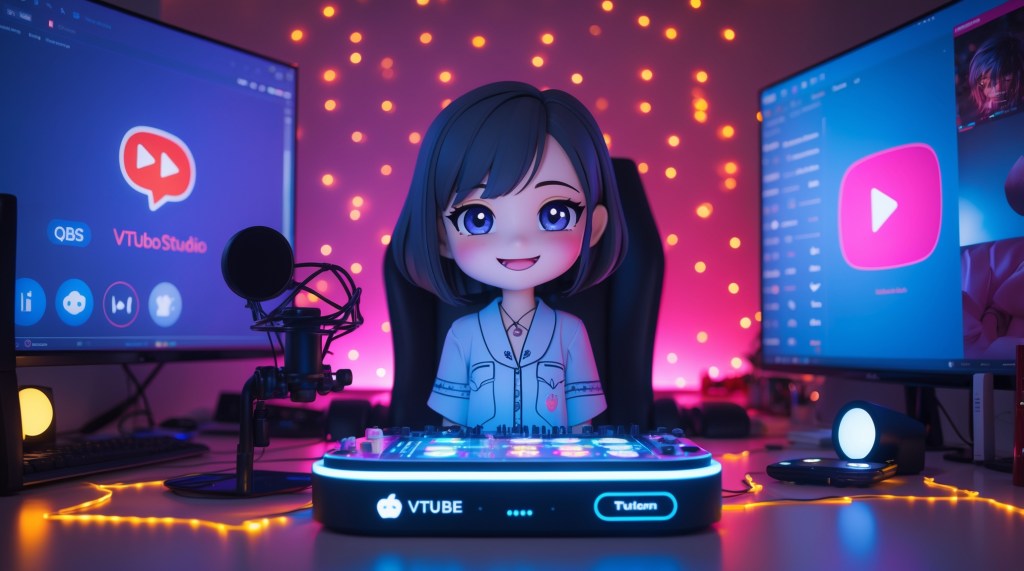
Ever watched your favorite VTuber pull off flawless scene switches, dramatic expression changes, and perfect sound drops, all without missing a beat? That’s not magic. It’s smart automation, and at the heart of it is the Stream Deck.
If you’re still clicking through windows or struggling with hotkeys mid-stream, you’re not just slowing down your workflow, you’re falling behind. In 2025, VTubing is more polished, reactive, and immersive than ever. Audiences expect smooth execution, and those who deliver it stand out fast.
This isn’t just a Stream Deck tutorial; it’s your shortcut to pro-level automation. Whether you’re new or leveling up, you’ll learn how to control your avatar, scenes, effects, and chat smoothly. In VTuber streaming, smooth stands out, and automation is your edge.
What Is a Stream Deck and Why Should VTubers Care?
At its core, a Stream Deck is a customizable control panel with physical buttons (or virtual if you’re using an app version) that trigger commands in software like OBS, VTube Studio, Twitch, Discord, and more. The most well-known version is the Elgato Stream Deck, which has become the gold standard for stream automation.
For VTubers, it’s more than just a fancy button box, it’s a lifeline. It helps you manage complex setups without breaking immersion. That means:
- No fumbling with your mouse mid-performance.
- Seamless scene changes, expression switches, sound cues, and more.
- Better focus on storytelling and audience interaction.
- And most importantly: fewer mistakes on live broadcast.
How to Set Up a Stream Deck?
Setting up your stream deck for the first time might feel intimidating, but it’s surprisingly simple, and incredibly rewarding. Whether you’re using an Elgato device or the mobile streamdeck app, the process is similar and beginner-friendly.
Step 1: Download the Stream Deck Software
Head over to Elgato’s official site and download the Stream Deck software. It’s compatible with both Windows and macOS and is the control hub for customizing your buttons.
Step 2: Connect Your Device
Plug in your stream deck via USB (or connect your phone if using the app). Once connected, the software will automatically recognize the device and display a virtual button grid.
Step 3: Drag and Drop Actions
You can now drag pre-made actions, like launching OBS scenes, playing sound effects, or controlling media, onto your button layout. Label each button and assign icons to make navigation quick and intuitive.
Step 4: Test and Tweak
Try out your setup by launching a mock stream. Fine-tune button placement, timing, and folder organization until it feels effortless. Don’t forget to explore plugins for VTuber-specific tools like VTube Studio or OBS Filters.
Once set up, your streamdeck becomes a control center that gives you full command of your stream, no more panic-clicking or tab chaos.
Choosing the Right Stream Deck for VTubing
Elgato currently offers several models, from the 6-button Stream Deck Mini to the massive 32-button Stream Deck XL. Which one’s right for you depends on your workflow.
Mini (6 keys): Best for beginner VTubers who only need a few hotkeys for things like scene switching, mute/unmute, and toggling their avatar’s expressions.
Standard (15 keys): Ideal for mid-tier VTubers juggling multiple scenes, audio tracks, effects, and overlays. This is the most popular option for most creators.
XL (32 keys): Great for pro VTubers or those who want to avoid using folders for deeper menu navigation. Also perfect for content creators who stream and edit in the same workspace.
Bonus: You can also use the Stream Deck Mobile app, which turns your phone into a virtual deck, handy if you’re just testing things out before committing.
Core VTuber Functions to Automate with Your Stream Deck
Let’s break down what you can actually control using a Stream Deck in your VTuber stream:
1. Scene Switching (OBS Studio / Streamlabs)
Assign each button to a different OBS scene: starting soon, live camera, game mode, BRB, ending, etc. Add fade or stinger transitions with a single tap.
2. VTube Studio Hotkeys
Use it to control your VTube Studio model—like:
- Triggering facial expressions (angry, blush, sweatdrop, laugh)
- Switching outfits or hairstyles
- Turning physics on/off (e.g., for performance boost)
- Hiding/showing props or toggling accessories
This is especially useful during roleplay or storytelling streams when you need fast expression switches to stay in character.
3. Lighting & Smart Devices (Elgato Control Center or Philips Hue)
Yes, your Stream Deck can dim the lights or switch colors in your room—dramatically boosting immersion during intense moments or mood transitions. Imagine a red light glow when your avatar gets “angry.” Cool, right?
4. Music & Sound Effects
Map buttons to play royalty-free BGM or sound effects like “bonk,” “laugh track,” or “drama sting.” Great for variety VTubers or meme-driven channels.
5. Chat Engagement & Commands (Twitch, YouTube, Discord)
Control Twitch chat commands or launch emote storms with a press. You can also open Discord voice or mute/unmute without alt-tabbing.
Beyond Basics: Next-Level VTuber Stream Deck Setups
Let’s go a step further. Here’s how pro VTubers automate performance, not just technical tasks.
🔁 Multi-Actions
One button can do multiple things at once. For example:
- Switch to your “angry” scene
- Change lighting to red
- Play an angry sound clip
- Trigger your model’s rage expression
All in one press. This is gold for reactive, storytelling-heavy VTubers.
🧩 Plug-ins for More Power
Stream Deck supports plugins, and some are tailor-made for VTubing:
- OBS Tools: Control filters, visibility, and more granular scene elements.
- BarRaider’s Super Macro: Advanced automation scripts, useful for toggling things like camera zooms or even TTS (text-to-speech).
- LioranBoard / Mix It Up (with Stream Deck integration): Offers gameified interactions for fans, perfect for Vtube engagement.
🔁 Folder Nesting for Expanded Workflow
Use folders to group related actions. For example:
- Folder 1: Expression Triggers
- Folder 2: Streaming Tools
- Folder 3: Sound Effects
- Folder 4: Camera Angles / Zooms
Folders give you unlimited flexibility even with limited buttons.
Real-World VTuber Use Cases
Still wondering how this works in action? Here are some creative ways VTubers use Stream Decks in the wild:
🎭 Character RP Stream
VTuber “Junari” plays a space bounty hunter. Their Stream Deck layout includes:
- Quick outfit changes (helmet on/off)
- Dialogue SFX triggers (“Target acquired”)
- Scene switches for cockpit, planet surface, etc.
- Dramatic lighting toggles
🎮 Game + Reaction Dual Stream
VTuber “KomiKyo” splits their stream between gaming and reaction content:
- One folder for game overlays, stats, and camera zooms
- Another for VTube Studio expressions (laugh, surprise, wink)
- Another just for meme SFX (“sad violin”, “bruh”, etc.)
💬 Chat Engagement First
VTuber “MomoBunny” focuses on community streams:
- Stream Deck includes audience poll buttons
- Real-time meme triggers fans can activate via chat
- Quick access to ban, timeout, slow-mode toggles
This setup creates a responsive, interactive vibe where the community feels like part of the stream.
Smart VTuber Workflow Tips for Stream Deck Efficiency
Here are a few practical VTuber workflow tips to get the most out of your Stream Deck:
✅ Keep Buttons Visually Intuitive: Use icons that match the function (e.g., mic icon for mute, angry face for rage expression). You can design custom icons or use packs from creators like Nerd or Die or Visuals by Impulse.
✅ Label Clearly but Concisely: You’ll need to read labels quickly during a live show. Use abbreviations you instantly understand.
✅ Backup Your Profile: Stream Deck lets you export profiles—perfect if you upgrade your PC or want to test new layouts without losing your main one.
✅ Schedule Your Scenes: Combine Stream Deck with third-party scheduling tools to automatically switch scenes at specific times (great for countdowns or collab intros).
Future-Proofing: VTubing, Vtube, and Stream Automation Trends
Stream automation is evolving fast, and for VTubers, it’s becoming more than just a helpful tool, it’s a creative engine. In 2025 and beyond, expect smarter integrations like AI-powered triggers that sync your avatar’s reactions with audience emotions or voice tones, using tools like OBS Lua scripting and Atom Switch. These innovations mean your avatar can respond in the moment, adding a whole new layer of realism and audience connection.
We’re also seeing exciting combinations, like pairing AI voice changers with Stream Deck commands to trigger both facial expressions and vocal shifts in sync. And the boundary between digital and physical is fading—some VTubers are now using their stream decks to control real-world effects like LED lights, fog machines, and moving props during live performances. As VTubing grows more immersive and theatrical, automation will no longer be optional, it’ll be the core of next-gen performance.
Final Thoughts
A VTuber Stream Deck is one of the smartest investments you can make for your content. Whether you’re a hobbyist or on the road to pro status, automating your VTuber workflow saves time, reduces stress, and lets you focus on what really matters: entertaining your audience. From smooth transitions to expressive storytelling, the right setup transforms you from a solo streamer into a one-person broadcast studio. So go ahead, customize your first button, press go live, and let your digital self shine.


 VtuberLab
Leave a reply to Ren Cancel reply