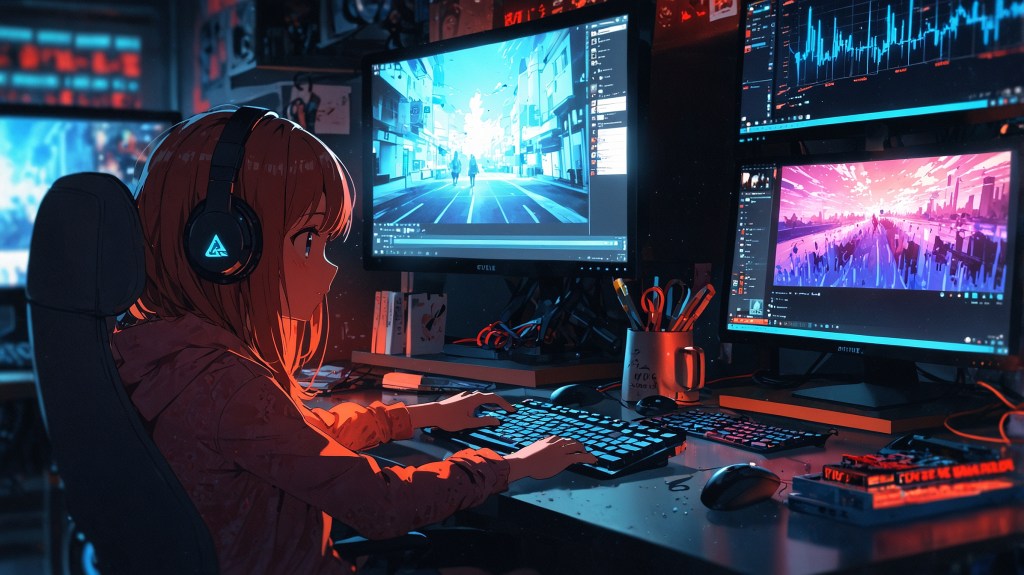
VTubing is all about presence. But what happens when your virtual self lags behind the real you? If you’ve ever watched a VTuber stream and noticed the mouth moving seconds after they spoke, or worse, a jittery avatar freezing mid-emotion, you’ve seen latency and lag in action. These issues are more than just annoying. In VTubing, where real-time connection and presence are everything, they can disrupt immersion and cost you audience trust.
Whether you’re just starting your VTuber journey or looking to refine your stream setup, this guide will unpack everything you need to know about VTuber lag, latency, and how to fix it for smoother, more professional VTubing.
Why Latency Matters in VTubing?
In traditional streaming, a few milliseconds of delay might go unnoticed. But VTubing adds a layer of complexity: your VTuber avatar is directly synced to your movements, facial expressions, voice, and gestures. When there’s a lag, your digital persona breaks character—sometimes literally.
Imagine this:
- You’re telling an emotional story, but your avatar’s face stays frozen in a smile.
- You scream during a horror game, but your mouth opens two seconds too late.
- You wave goodbye, but your arm twitches awkwardly before raising.
These moments kill immersion, and worse, they make your content look unpolished.
What Is Latency, Really?
Let’s break it down. In the world of VTubing, latency refers to the time it takes for your real-world input (voice, movement, facial expression) to translate into a visible output through your VTuber model on screen.
There are two main types of latency you should care about:
1. Input Latency
This is the delay between your movement or speech and how quickly your VTuber avatar responds. Caused by tracking software, webcam quality, and your computer’s processing power.
2. Stream Delay
This is the delay between what you do live and what your audience sees. It’s influenced by internet speed, your streaming platform, and your encoding settings.
Both impact viewer experience. One breaks your avatar’s realism; the other breaks audience engagement.
Myth vs Reality: What Really Causes VTuber Lag?
Let’s bust a few myths before we dive into the technical side:
| Myth | Reality |
| “It’s just my internet.” | Lag can come from poor optimization, not just bandwidth. |
| “My model is high-quality, so it should perform better.” | High-poly models can slow down your stream if they’re not optimized. |
| “It’s because I’m using free tools.” | Even pro setups lag if configured poorly. Free tools like VTube Studio or VSeeFace can perform well if set up right. |
Common Causes of VTuber Lag
Let’s dig into why VTuber lag happens. It’s not always your software—though that’s often a suspect. Sometimes, it’s hardware bottlenecks. Other times, it’s internet instability or streaming settings. Here are the most common culprits:
1. Underpowered Hardware
Running VTube Studio, a game, OBS, and Discord on a mid-range PC? That’s a lot to ask.
- CPU bottlenecks slow down avatar rendering.
- GPU limitations affect frame rates and facial tracking.
- Insufficient RAM causes stuttering or freezing.
2. Inefficient Avatar Models
Not all VTuber models are created equal. Some have:
- High polygon counts (especially in 3D avatars)
- Excessive physics or blend shapes
- Poor optimization from creators
These models demand more power to run smoothly.
3. Tracking Software Delays
Using a basic webcam for face tracking? Or your phone is overheating?
- Low frame rate or poor lighting = input lag.
- Tracking software like VSeeFace or iFacialMocap may introduce delay if your device can’t handle it in real time.
4. Network Latency
Even if your avatar moves perfectly, stream delay can ruin the show.
- High ping = more delay between you and the platform (Twitch, YouTube, etc.)
- Unstable internet = buffering and stream freeze.
- Wi-Fi over Ethernet = less stable connection.
5. OBS or Streaming Settings
OBS isn’t a one-click tool. If your settings aren’t dialed in:
- High bitrate can overload your encoder.
- CPU usage preset may be too slow.
- Output resolution might not match your game or model.
How to Fix VTuber Lag Like a Pro?
Now for the good part: fixing latency. The goal is to achieve low latency and smooth avatar performance, even with a basic setup. Here’s how to level up your stream:
✅ Optimize Your VTuber Avatar
Start with your model. Whether it’s a 2D Live2D or 3D VTuber model, optimization is key.
For 2D avatars:
- Use fewer art meshes and blend shapes.
- Simplify physics if it’s not adding expressive value.
- Limit the number of dynamic elements like hair or accessories.
For 3D avatars:
- Lower the polygon count without sacrificing quality.
- Use LOD (level of detail) settings if your software supports it.
- Reduce spring bones and unnecessary cloth physics.
If your avatar was custom-made, reach out to the artist for a performance pass.
✅ Upgrade Tracking Hardware
Face and body tracking are essential in VTubing. But if you’re running on an old webcam, consider:
- Upgrade to an iPhone (with Face ID): Combined with apps like iFacialMocap or Waidayo, it delivers buttery-smooth facial tracking.
- Use a Leap Motion Controller or hand-tracking gloves for expressive motion if you’re a hand-heavy VTuber.
- Improve lighting to reduce webcam jitter.
You’ll instantly see a jump in avatar responsiveness.
✅ Tune Your Streaming Software
OBS Studio or Streamlabs? Both need attention.
- Set CPU usage preset to “veryfast” or “superfast” if your PC struggles.
- Match your base and output resolution to avoid encoding strain.
- Lower your bitrate slightly if you experience upload drops (e.g., from 8000 kbps to 6000 kbps).
- Use NVENC (NVIDIA) or AMF (AMD) GPU encoders if available.
Also, monitor your render lag and encoder lag in OBS stats. They reveal what part of your system is causing VTuber lag.
✅ Stream on a Wired Connection
Switch from Wi-Fi to Ethernet. You’ll reduce:
- Ping spikes
- Packet loss
- Frame drops
If Ethernet isn’t possible, use a 5GHz Wi-Fi band and sit closer to the router.
✅ Set Your Platform to Low-Latency Mode
Twitch and YouTube both offer Low Latency or Ultra Low Latency modes. These settings cut down viewer delay, enabling near real-time interaction.
- For Twitch: enable “Low Latency Mode” in settings.
- For YouTube: Choose “Ultra Low Latency” when setting up your stream.
It’s ideal for chatting, reacting, or roleplaying with fans live.
✅ Use Stream Delay Strategically
Some VTubers intentionally add a slight stream delay to prevent overload or sync everything better.
- Add 2–5 seconds delay to allow OBS to buffer smoother output.
- Sync delay with audio and video in OBS’s Advanced Audio Properties.
- Delay capture sources like game footage or camera if needed.
It’s counterintuitive, but it can result in a more stable stream.
✅ Monitor Performance in Real Time
Use built-in tools to keep track of stream health:
- OBS Stats Panel: Check dropped frames, CPU/GPU usage, render time.
- Task Manager (Windows) or Activity Monitor (Mac): Spot bottlenecks.
- VTube Studio’s Performance Mode: Turn it on when lagging during long streams.
Being aware is the first step toward fixing latency issues before they affect your audience.
Where VTube Platforms Play a Role?
Not all VTuber streams are created equal—and much of that comes down to the platform you choose. Even with the best avatar performance and low-latency setup, platform-specific stream latency can impact how quickly your audience sees and hears you.
Twitch
Twitch automatically enables Low Latency Mode, which is great for real-time interaction with chat. It’s ideal for VTubers who prioritize engagement, like roleplay streams, reaction content, or live storytelling. Just remember that overlays and stream assets still need to be optimized to fully benefit from it.
YouTube
YouTube gives you more control. Choose “Ultra Low Latency” in your live stream settings if you want near real-time feedback. This mode sacrifices a bit of stream quality but drastically reduces delay, making it a solid choice for fast-paced VTuber streams and audience Q&As.
Kick
Still gaining traction, Kick supports 1080p at 60FPS, but it doesn’t yet offer fine-tuned latency settings. You might see slightly more delay compared to Twitch or YouTube, but it’s stable for most casual VTubing.
🔁 Pro Tip: No matter the platform, always run a test stream before going live to identify bottlenecks and confirm your avatar and audio stay perfectly synced.
Tools and Software to Tame VTuber Lag
Sometimes, performance issues don’t come from your hardware, but from the tools you’re using to run your avatar, capture input, or stream your content. Choosing the right VTuber software can make a dramatic difference in latency and avatar responsiveness.
Here’s a list of lag-busting tools trusted by VTubers across the board:
🎭 VTube Studio
A favorite among Live2D creators, VTube Studio is lightweight, supports iOS and webcam tracking, and offers fine control over physics, smoothing, and motion delay—ideal for reducing visual jitter.
🖥️ VSeeFace
For 3D VTuber avatars, VSeeFace remains one of the most performance-efficient tools available. It’s great for tracking via webcam and Leap Motion while offering robust optimization settings for blend shapes and GPU usage.
📡 OBS Studio
Still the gold standard for streaming, OBS lets you fine-tune encoding, bitrate, and resolution, all of which directly impact stream delay and avatar performance.
🧩 TheVTubers.com
Looking for optimized VTuber models that are actually designed with performance in mind? Sites like TheVTubers.com provide custom vtuber avatars that don’t just look good—they’re crafted to run smoothly, even on mid-range setups. Many creators overlook this, but starting with an optimized model often fixes half the lag before it begins.
📱 iFacialMocap / Waidayo / MeowFace
Mobile tracking apps can reduce the need for webcams entirely and provide ultra-accurate facial data with minimal delay, especially when used with iPhones or Android devices on the same network.
Final Thoughts
Lag is the enemy of immersion. And in VTubing, where your performance is entirely digital, keeping your avatar’s performance and stream delay in check is essential. But here’s the good news: You don’t need a Hollywood setup. Many VTubers stream on mid-tier hardware and basic tools. It’s about smart choices, not expensive gear. Optimize your model. Tweak your setup. Watch your latency. That’s how you go from choppy and awkward to silky smooth and professional, earning your audience’s trust with every frame.


 VtuberLab
Leave a comment